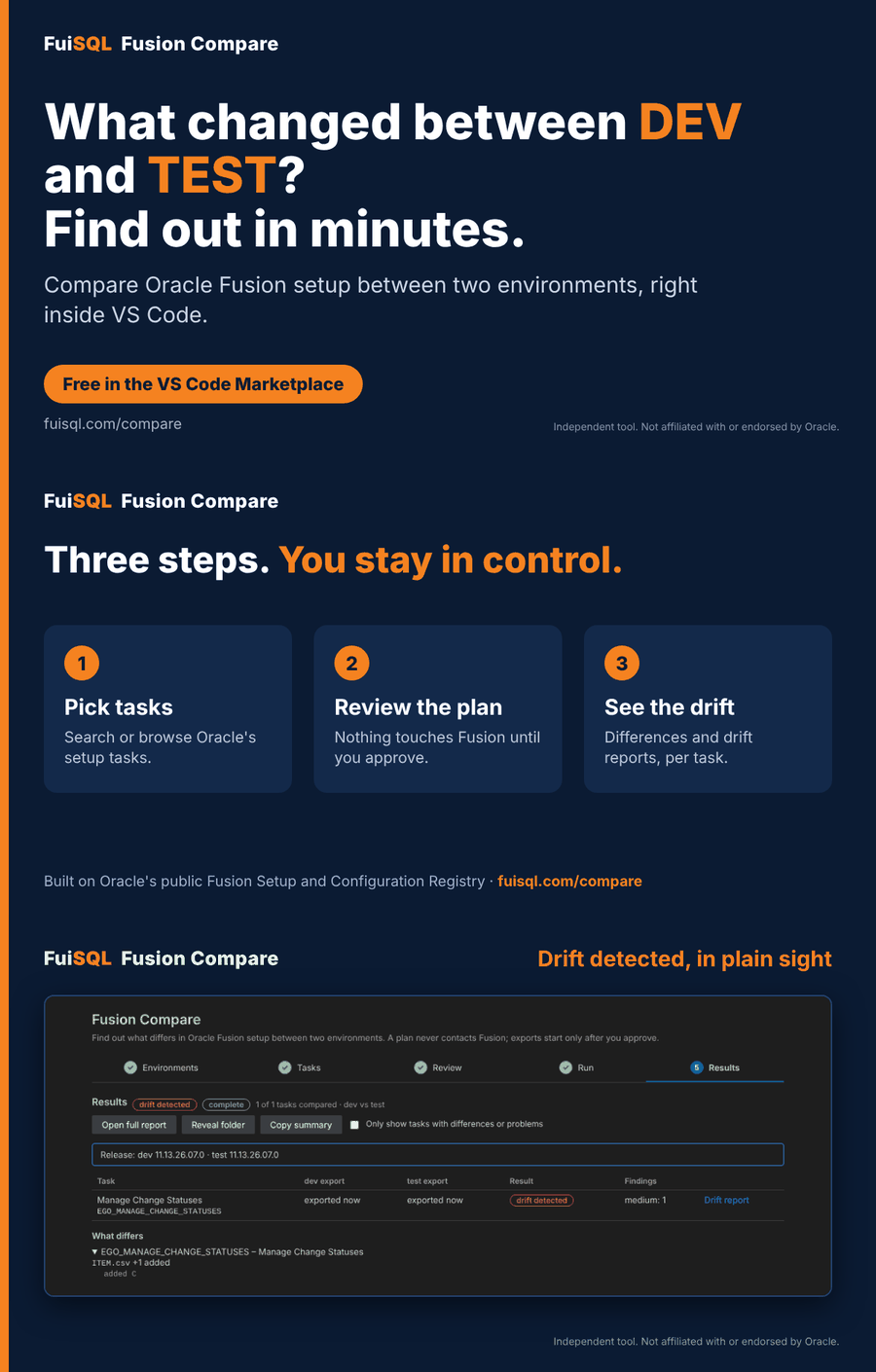
Fusion Compare exports the same setup tasks from two Oracle Fusion environments, compares them on your computer, and shows what is different, what is missing and what could not be compared. All inside VS Code.
Free for 3 months · Windows · macOS · Linux · Python included · Nothing changes in your environments
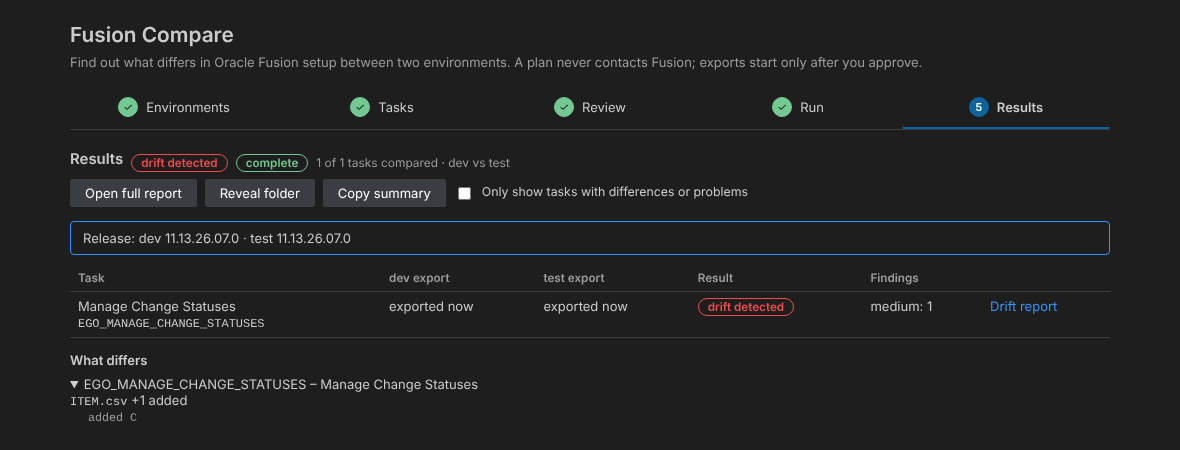
The Results step — the extension’s own interface, shown with sample data.
Why compare
Oracle Fusion setup lives in hundreds of tasks across offerings and functional areas. Checking two environments by hand means opening the same screens twice, or exporting and diffing files yourself. It is slow, and it is easy to miss the one value that matters.
Confirm that the setup you built and tested in one environment is actually what exists in the next one, before users find the gaps.
Start from a list of differences instead of a hunch. Narrow a “works here, fails there” issue to the setup tasks that really diverge.
Re-run the same comparison and see what moved. The release each environment reports is shown beside the result.
How it works
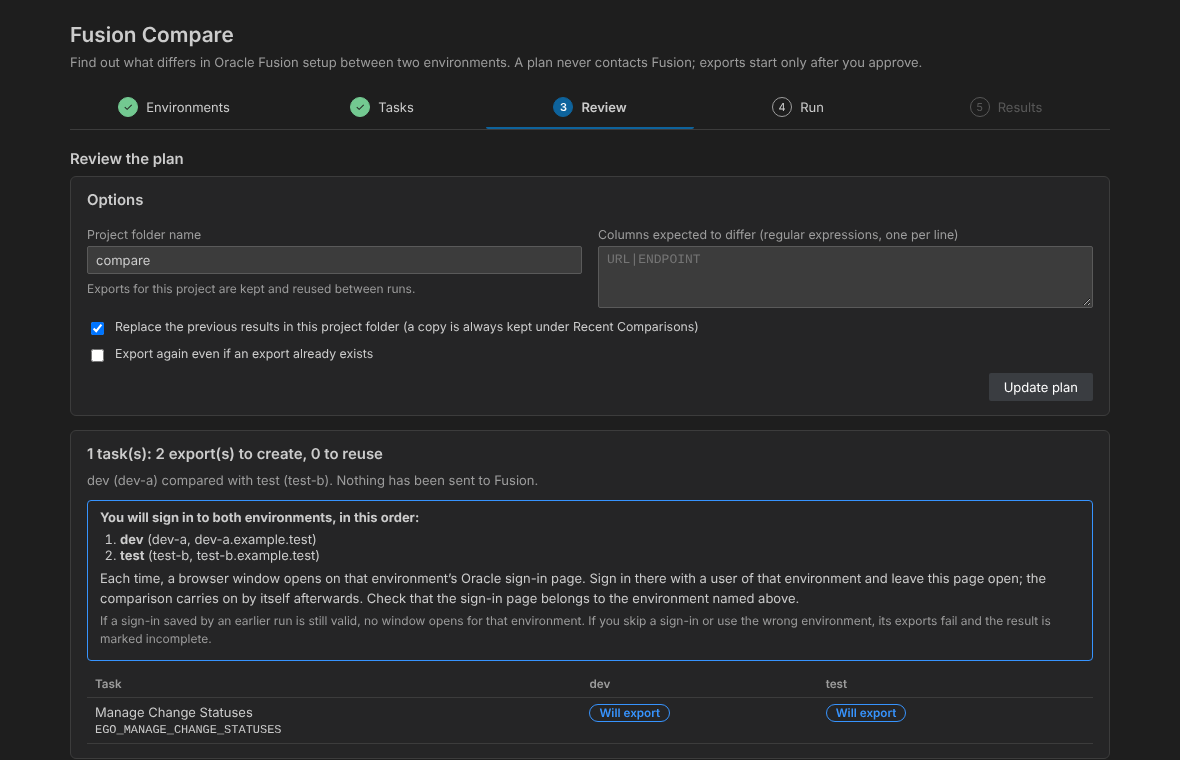
A guided wizard walks you through it. Nothing is sent to Fusion until you have reviewed and approved the plan.

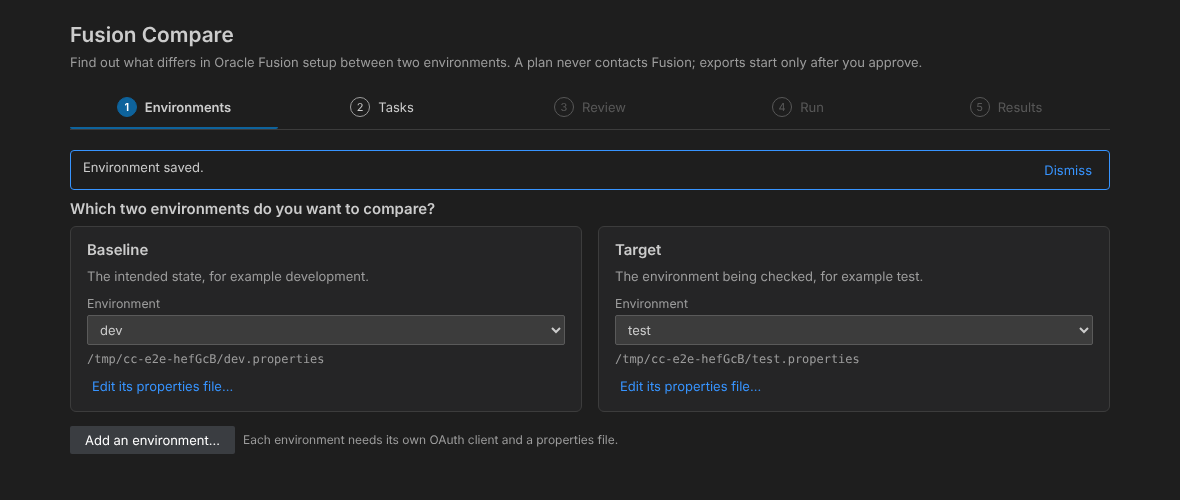
Choose any two saved environments: DEV against TEST, TEST against PROD, or a pod against its clone.
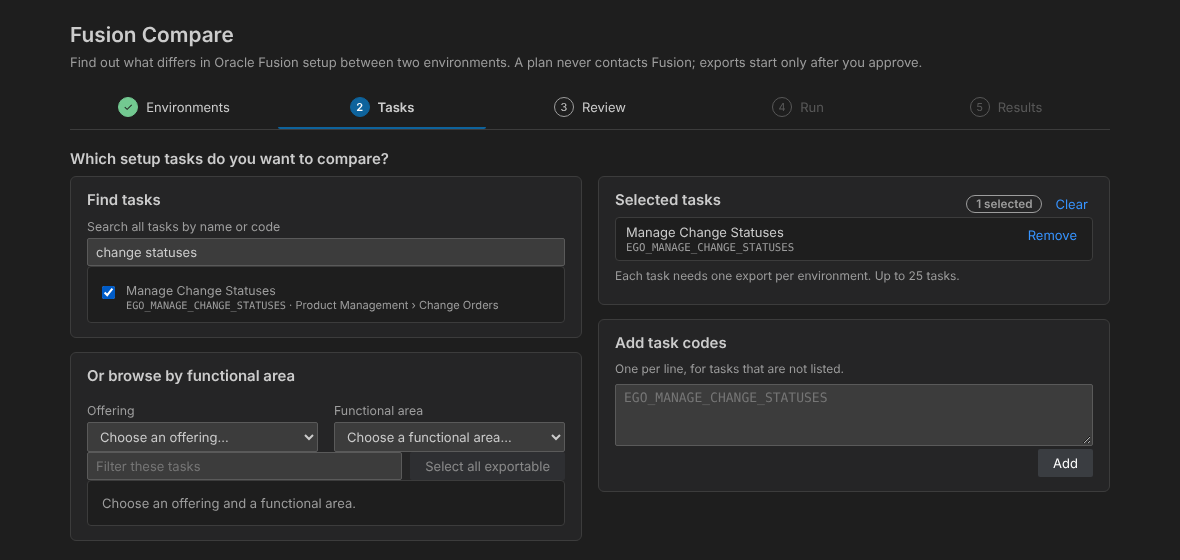
Compare one task or a whole functional area. Search every setup task by name or code, or browse by offering and functional area.
The review step lists exactly which exports exist already and which would be created. Nothing has contacted Fusion yet.
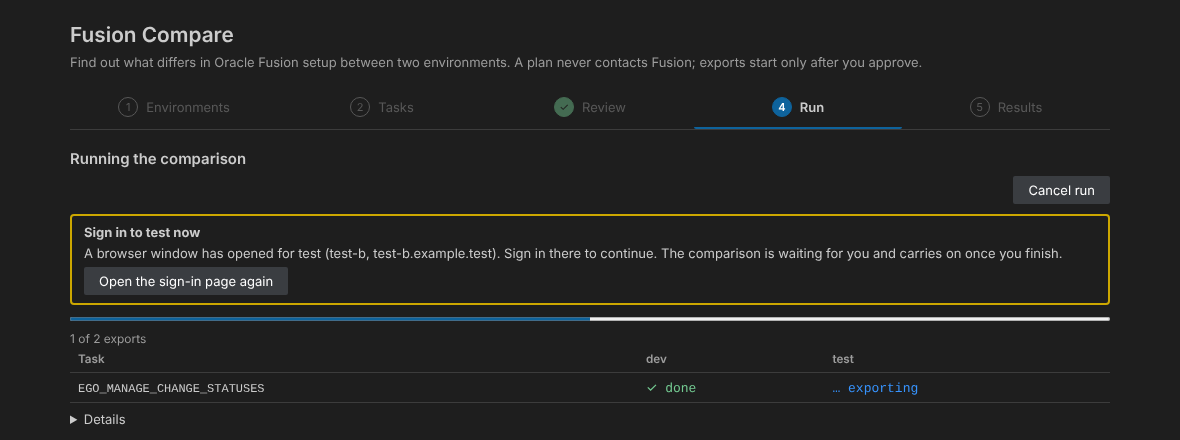
You approve the plan, and a browser window opens on Oracle’s own sign-in page. The extension tells you which environment it is for, so you never sign in to the wrong one.
Each task ends as identical, drift detected or could not be compared. Open the detail to see which rows were added, removed or changed.
Screens above are the extension’s own interface, shown with sample data.
Features
Fusion Compare is a native VS Code extension: a sidebar for your environments and history, and a wizard for each comparison.
Find tasks by name or code, browse by offering and functional area, or paste codes. No need to remember where a task lives.
See what will be exported before anything contacts Fusion. Approve it once and the run proceeds.
The extension names the environment a sign-in is for before the browser opens, and blocks an environment you have not approved on this computer.
Added, removed and changed rows per file, with a severity count, grouped under the task they belong to.
List the columns you expect to differ, such as hostnames or endpoints, so reports stay about real drift.
The release each environment reported is shown with the result, which explains many differences at a glance.
Open a full or per-task report, copy a short summary into a ticket, or reveal the files on disk.
Finished comparisons stay in the sidebar. Retry only what failed, or export again when you want fresh data.
Platform builds include their own Python, with certificate settings for company networks that inspect HTTPS traffic.
Security & privacy
Environment setup can be sensitive. Fusion Compare is designed so that nobody but you handles it.
You authenticate on Oracle’s own page. Passwords are never entered in VS Code or stored by the extension.
Exports are compared locally and results are written to a folder you choose. FuiSQL does not receive your setup data, and the extension sends no usage telemetry.
It exports the tasks you choose and compares them. It does not import anything into either environment.
An environment must be approved on this computer before sign-in works, and a plan must be approved before any export starts.
Built on Oracle’s registry
Fusion Compare bundles a pinned copy of Oracle’s Fusion Setup and Configuration Registry (FSCR), verified by hash on every build, and puts a guided VS Code experience on top of it.
“FSCR is separately released sample and reference material for planning and configuring Oracle Fusion Cloud implementations.”
“Meet the Oracle Fusion Setup and Configuration Registry, or FSCR (fi-skur) for short.” An “open source collection of AI skills, scripts, and reference workflows.”
FSCR is released by Oracle under the Universal Permissive License (UPL) 1.0. It is not an Oracle Fusion Cloud product feature. Fusion Compare is an independent FuiSQL product and is not affiliated with or endorsed by Oracle.
Get started
The one-time work is an OAuth client in each environment. The extension explains every field as you go.
Get it from the VS Code Marketplace. VS Code picks the build for your platform (Windows, macOS or Linux).
Create a public client in Oracle Identity Cloud for each environment you want to compare. Step-by-step guide.
Fill in the short form. The extension creates the properties file, which holds no secrets.
Choose tasks, review the plan, sign in when asked, and read the result.
OAuth setup
Fusion Compare signs in to Fusion the way a mobile app would, through your browser. That needs a small OAuth client, registered once for each environment. It holds no password and changes nothing in Fusion. You, or your Identity Domain administrator, create it in the Oracle Cloud console. The extension shows the same steps beside its form, with a Copy button for the redirect URL.
FSCR) and Submit.http://127.0.0.1:8765/oauth/callbackdev, test or uat. Letters, digits, ., _ and -, up to 30 characters./ only, for example https://your-pod.fa.us2.oraclecloud.com. It must start with https:// and have no path. It is not the Oracle Cloud console address or the identity (login) address.scope. Add the resource under Token issuance policy, activate the application again, and copy the scope.127.0.0.1 and port 8765.Free for 3 months
Start the trial from the extension and the rest is automatic: no key to copy. No card. Without a key you can compare up to 20 tasks at a time; a license allows 25 per comparison. Afterwards the plans and prices are the same as FuiSQL.
Your trial key
That is it. Fusion Compare picks the key up by itself within a few minutes. To do it now, open the extension, go to the License section and choose Check for license. Pasting the key is only needed if that does not work: use Machine ID and manual key in the same section.
After the trial. Paid plans are checked out securely and the key is emailed to you.
Several seats or an invoice? See Teams & Sales. Questions: [email protected].
FAQ
The FuiSQL family
Run SQL directly against your Oracle Fusion Cloud environment through BI Publisher, with schema-aware IntelliSense, join suggestions, drill-down and one-click export.
Explore FuiSQL →Compare Oracle Fusion setup between two environments, task by task, and review exactly what differs.
You are here